
How to Download Movies for Offline Viewing on Cineby
Streaming is great when your internet is fast, but what about long flights, road trips, or areas with weak signals? That is where offline downloads save the day. One of the most useful features of the Cineby app is its built-in download manager, which lets you save movies and episodes directly to your device and watch them later without any internet connection.
In this guide, you will learn exactly how to download movies on Cineby step by step, which quality settings to choose, where your downloads are saved, and what to do when a download refuses to work. If you are new to the app, you may also want to check the top 10 features of the Cineby app to see everything it can do.
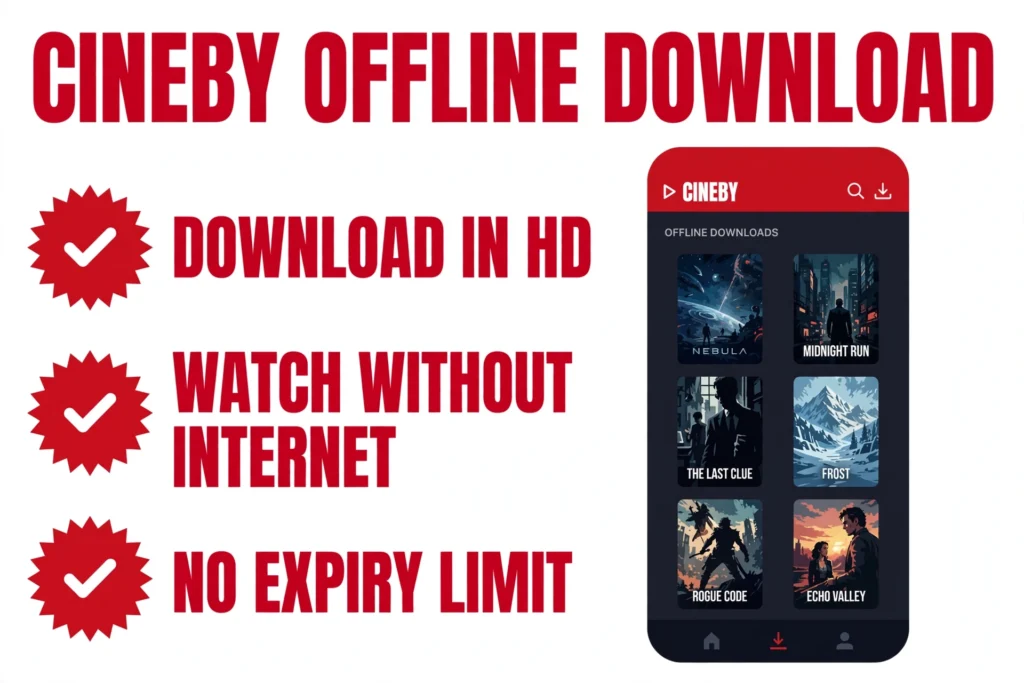
Does Cineby Support Offline Downloads?
Yes, Cineby fully supports offline downloads. The app comes with a built-in download manager, so you do not need any extra downloader app or plugin. When you find a movie or TV episode you like, you simply tap the download icon, pick a quality, and the app saves the file to your device storage.
Once a download is complete, you can open it from the Downloads or Library section inside the app and watch it anytime — on a plane, on the subway, or anywhere your connection drops. There is no 30-day expiry timer like some paid services use. Your downloaded files stay on your device for as long as the app remains installed and you do not delete them yourself.
One thing to keep in mind: downloaded files are tied to the Cineby app itself. They are stored in the app’s private storage area, which means you cannot simply copy the video file and play it in another video player or send it to a friend’s phone. This is normal for streaming apps and also protects the content. Before you download anything, it is also smart to read our honest safety guide for the Cineby APK so you know how to stay safe while using the app.
How to Download Movies on Cineby — Step by Step
Downloading on Cineby takes less than a minute once you know where the buttons are. Follow these steps:
Step 1: Open the Cineby app on your Android device. Make sure you are running the latest version of the app so the download feature works smoothly.
Step 2: Find the movie or episode you want. Use the search bar at the top to type the title, or browse through the trending, movies, or TV shows sections on the home screen.
Step 3: Open the title’s details page. Tap on the movie poster or episode to open its details page, where you will see the synopsis, rating, cast, and the play and download options.
Step 4: Tap the Download icon. You will usually see a downward arrow icon next to the Play button. Tap it to start the download process.
Step 5: Choose your video quality. Cineby will show you the available quality options, typically 480p, 720p, and 1080p. Pick the one that fits your needs — higher quality looks better but takes more storage space and longer to download.
Step 6: Wait for the download to finish. A progress bar shows how much has downloaded. Keep the app open (or at least running in the background) until it reaches 100 percent. Downloading over Wi-Fi is strongly recommended because movie files are large and can eat through mobile data quickly.
Step 7: Find your movie in Downloads. Once finished, go to the Downloads or Library section from the app’s main menu. Your movie will be listed there, ready to play offline with a single tap.
Best Download Settings (Quality & Storage)
Choosing the right quality makes a big difference. Higher quality means sharper picture but much larger files. Here is a rough idea of what to expect per full-length movie:
- 480p (SD): around 300 to 500 MB per movie. Fine for small phone screens and best when storage space is tight.
- 720p (HD): around 700 MB to 1.2 GB per movie. The best balance of quality and file size for most users.
- 1080p (Full HD): around 1.5 to 2.5 GB per movie. Choose this only if you have plenty of free storage and a big screen.
TV episodes are smaller than movies, usually between 150 MB and 600 MB each depending on quality and episode length.
Before downloading a batch of titles, check your free storage. On Android, go to Settings, then Storage, to see how much space is available. As a rule of thumb, keep at least 2 to 3 GB free so the app has room to work. If your phone is nearly full, stick to 720p or 480p downloads, or delete old downloads you have already watched. Also, always prefer Wi-Fi for downloading — a single 1080p movie can use more mobile data than many monthly plans allow.
Where Are Downloaded Movies Saved?
Your downloaded movies live inside the Cineby app itself, under the Downloads or Library section. Open the app, tap the menu, and you will see all your saved titles in one place with their posters, ready to play.
Technically, the video files are stored in the app’s private storage folder on your device. On some versions you may also find them through your file manager under the Android data or Download folders, but you do not need to touch those files directly — just use the app’s own Downloads section.
Two important warnings. First, if you uninstall the Cineby app, all your downloads will be deleted with it, so you would need to download everything again after reinstalling. Second, never tap “Clear Data” in the app settings unless you are prepared to lose your downloads, because clearing data wipes the app’s storage completely. Clearing only the cache is safe and does not remove downloads.
Cineby Downloads Not Working? Fixes
If your download is stuck, fails, or the download button does nothing, work through these fixes in order:
1. Check your free storage space. This is the most common cause. If your phone is nearly full, downloads cannot start or will freeze halfway. Free up space and try again.
2. Switch to a stable Wi-Fi connection. Weak or dropping mobile data often breaks downloads. Connect to reliable Wi-Fi and restart the download.
3. Try a different server or source. Cineby pulls streams from multiple servers. If one server’s download fails, go back to the title page and try downloading from another available source.
4. Update the app to the latest version. Older versions sometimes have broken download features. Check cinebyhub.com for the newest release and update.
5. Clear the app cache. Go to your phone’s Settings, then Apps, then Cineby, then Storage, and tap Clear Cache. This fixes many glitches without deleting your downloads.
6. Restart the app or your phone. A simple restart clears temporary errors that can block the download manager.
7. Reinstall as a last resort. If nothing else works, uninstall and reinstall the app. Remember that this deletes all existing downloads, so only do this when you have tried everything else. For more general problems, see our guide to common errors in the Cineby app.
Frequently Asked Questions
Can I download movies on Cineby for free?
Yes. Downloading is completely free in Cineby, just like streaming. There are no download limits, no premium tiers, and no extra charges for offline viewing.
Do Cineby downloads expire?
No. Unlike some paid services that delete downloads after 30 days, your Cineby downloads stay on your device indefinitely — as long as you keep the app installed and do not delete the files or clear the app’s data.
Can I watch downloaded movies without the internet?
Yes, that is the whole point of downloading. Once a movie shows as fully downloaded in the Downloads section, you can play it with mobile data and Wi-Fi both turned off.
Why is my Cineby download stuck at 0 percent?
A download stuck at zero is almost always caused by one of three things: no free storage space, an unstable internet connection, or a dead server source. Free up storage, switch to strong Wi-Fi, and try a different source for the same title.
Can I download movies on iPhone or PC?
On Android the process is exactly as described above. On iPhone, you need to sideload the app first — see our Cineby for iOS guide. On a computer, install Cineby through an Android emulator and download inside the emulator the same way — see our Cineby for PC guide.
Conclusion
Downloading movies for offline viewing on Cineby is simple: find your title, tap the download icon, pick a quality, and watch it later from the Downloads section without any internet. Choose 720p for the best balance of quality and storage, use Wi-Fi for big files, and keep some free space on your device. With these habits, you will always have something great to watch, even when the internet disappears.